Editing and Updating Your List
After creating your list, you will see three new elements in the toolbar that allow you to manage your list's data. Before you can make any changes, you need to create a version.
Before You Start
If you created your list from the template repository, it already includes some categories and two certification types ("None" and "Certified"). However, it does not include any regions. Since every place must be assigned to a region, you need to create at least one region before you can add places.
To create regions, first create a version, then use the "Manage..." button to open the regions editor.
Versions
A version is a copy of your list where you can make changes without affecting the published data. Think of it as a draft. You can make as many changes as you want in a version, then publish them all at once when you are ready.
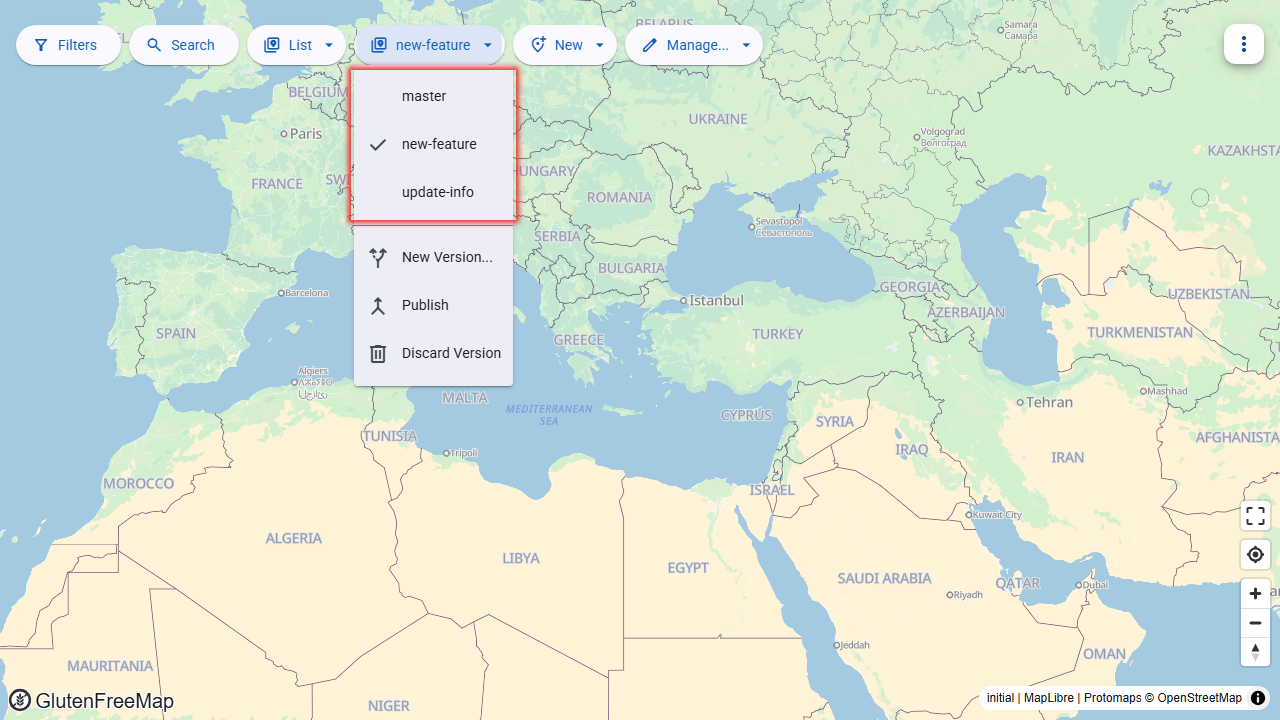
The "Version" button in the toolbar shows the name of the current version. When the "master" (or "main") version is selected, the button shows a lock icon indicating that the data cannot be edited.
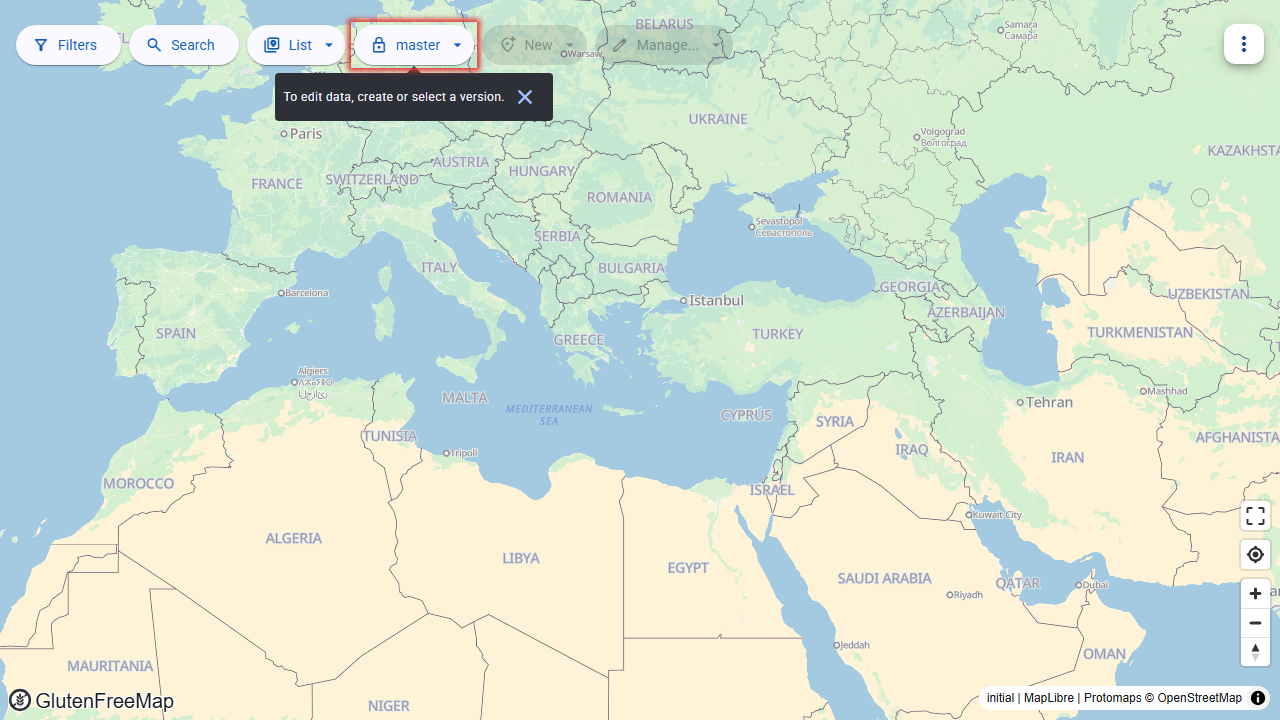
Creating a version
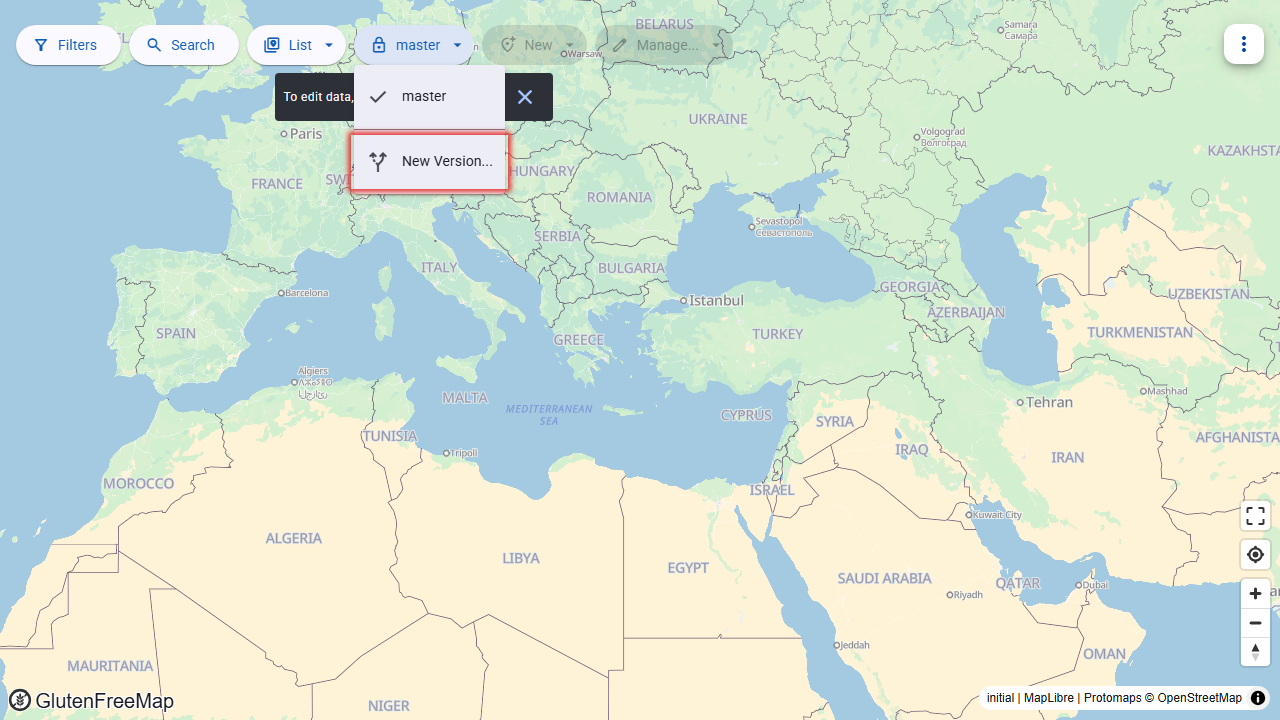
To start editing, click the "Version" button and select "New Version..." from the menu.
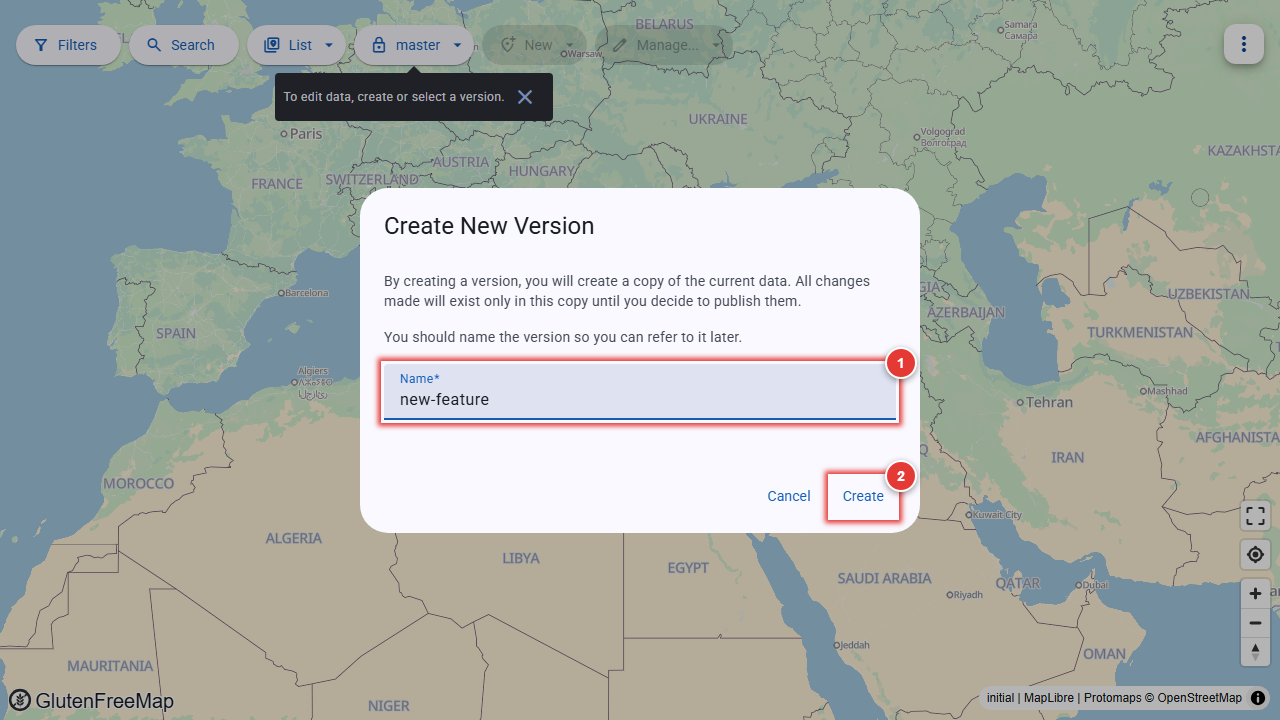
A dialog will appear asking you to name your version. Enter a name 1 then press the "Create" button 2. The name can only contain letters, numbers, and hyphens, and cannot start with a hyphen. For example, you could name it "add-new-places" or "update-july".
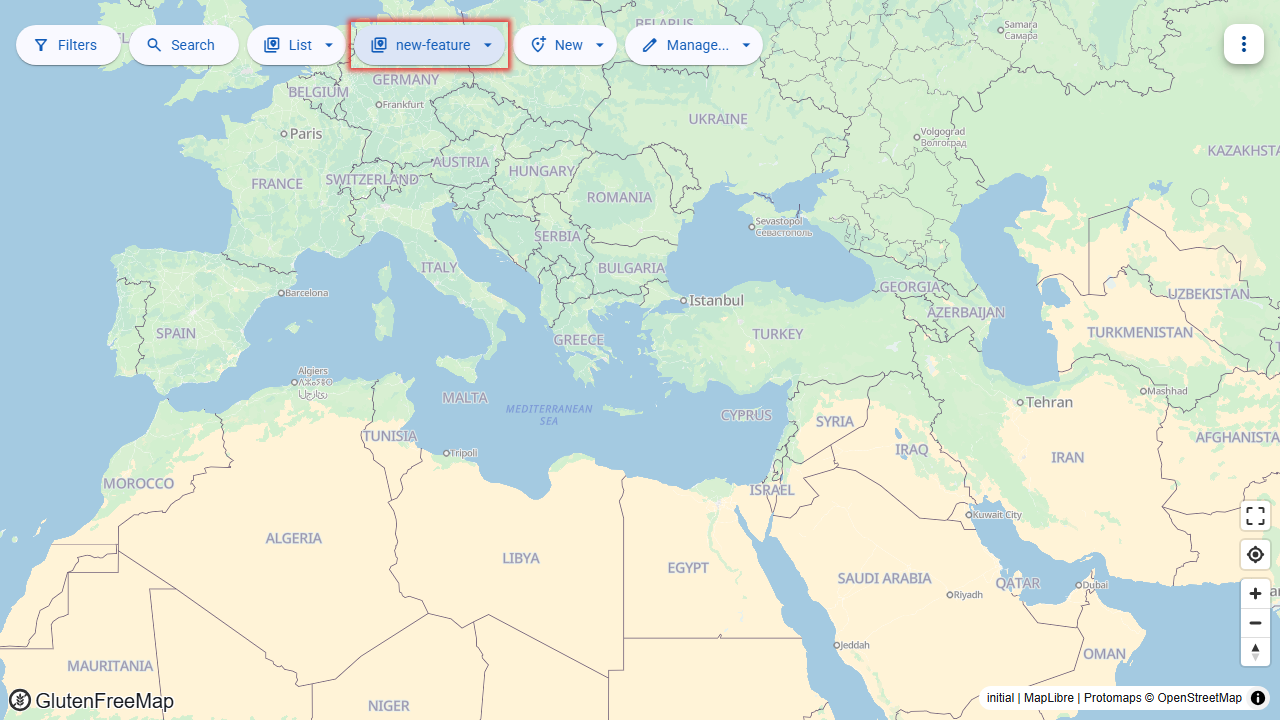
Once the version is created, the other toolbar elements become active and you can start making changes.
Switching between versions
If you have multiple versions, click the "Version" button to see a list of all your versions. Click on any version name to switch to it.
Publishing a version
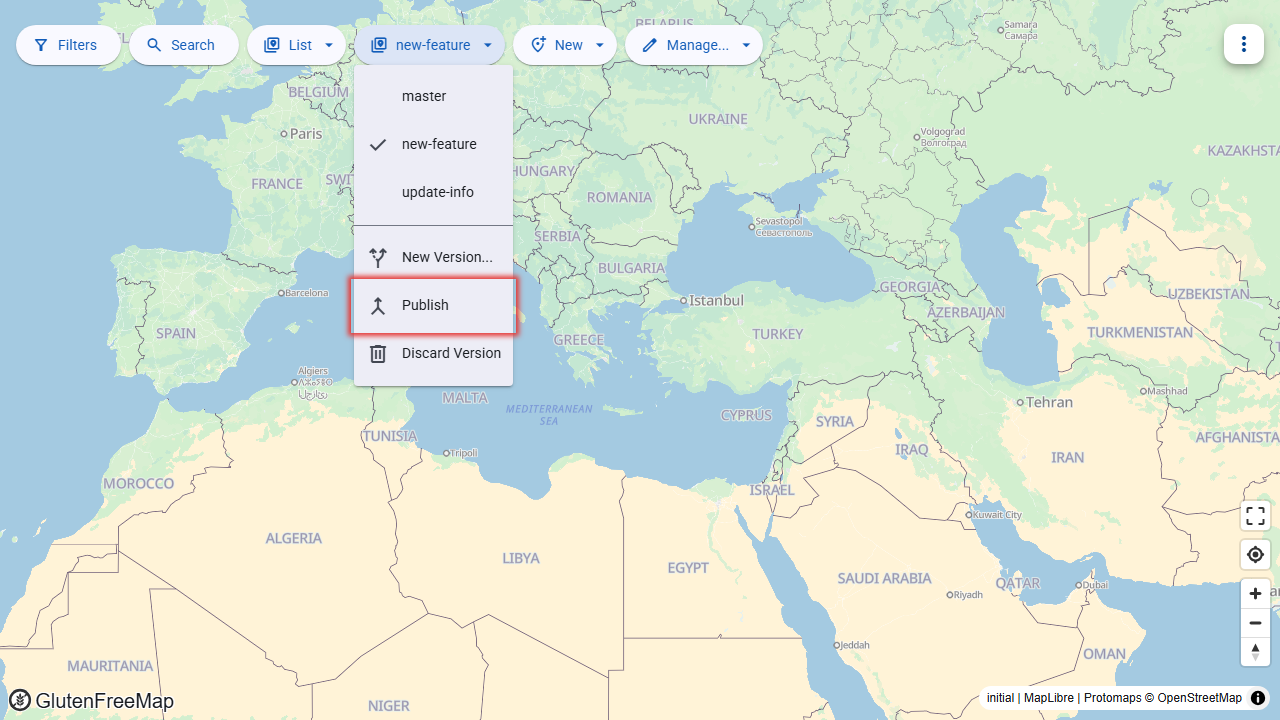
When you are happy with your changes, click the "Version" button and select "Publish".
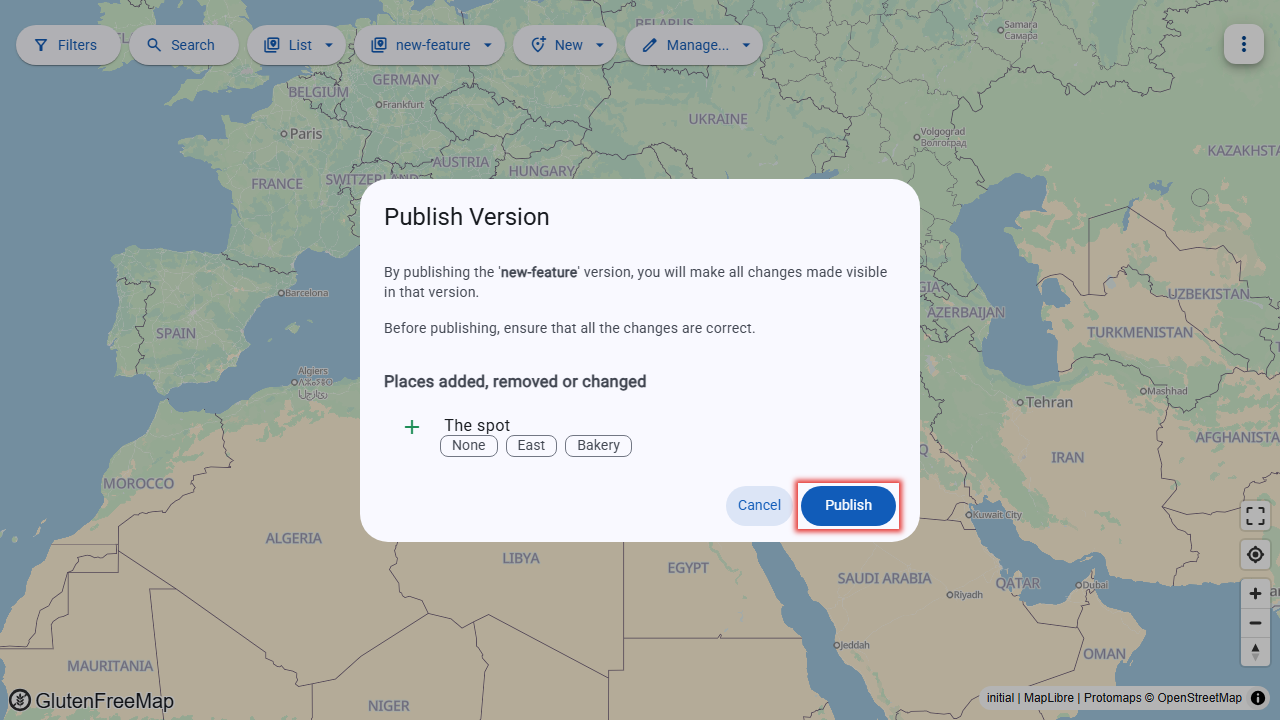
A dialog will show you a summary of all the changes you made (places added, removed, or changed, along with any other modifications). Review the changes and confirm to make them visible to everyone.
Discarding a version
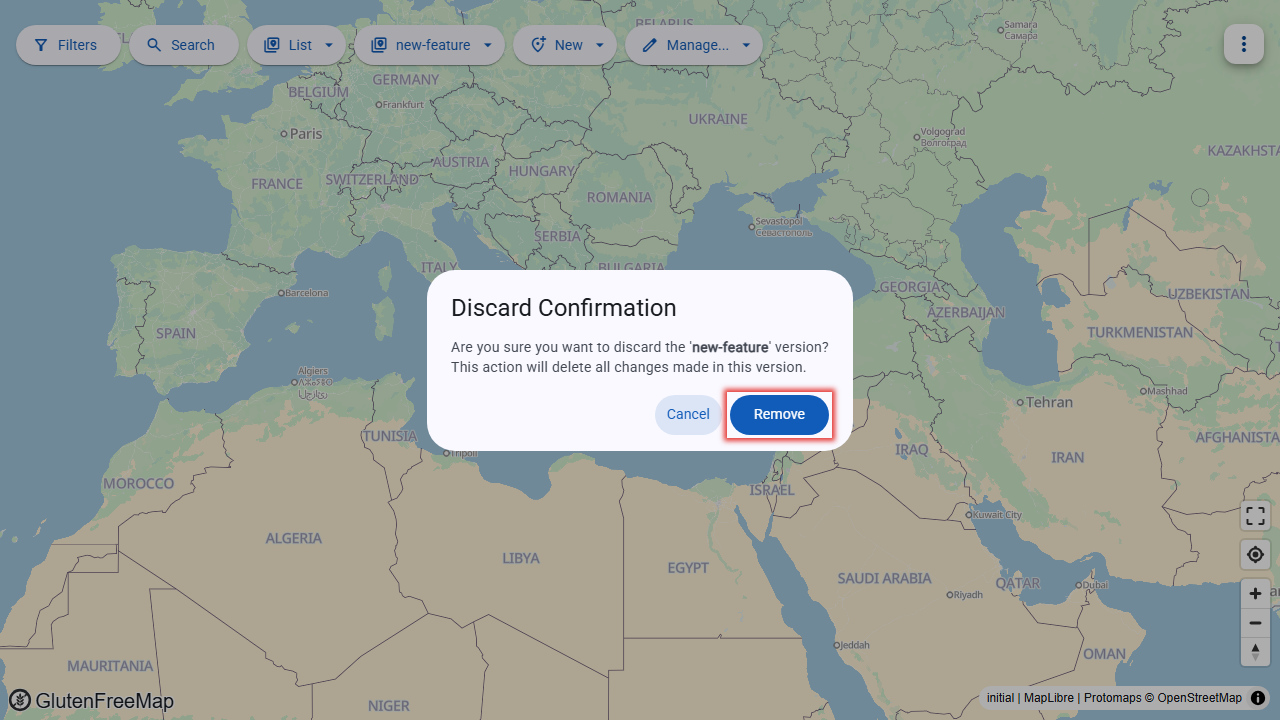
If you want to discard all changes in a version, click the "Version" button and select "Discard Version".
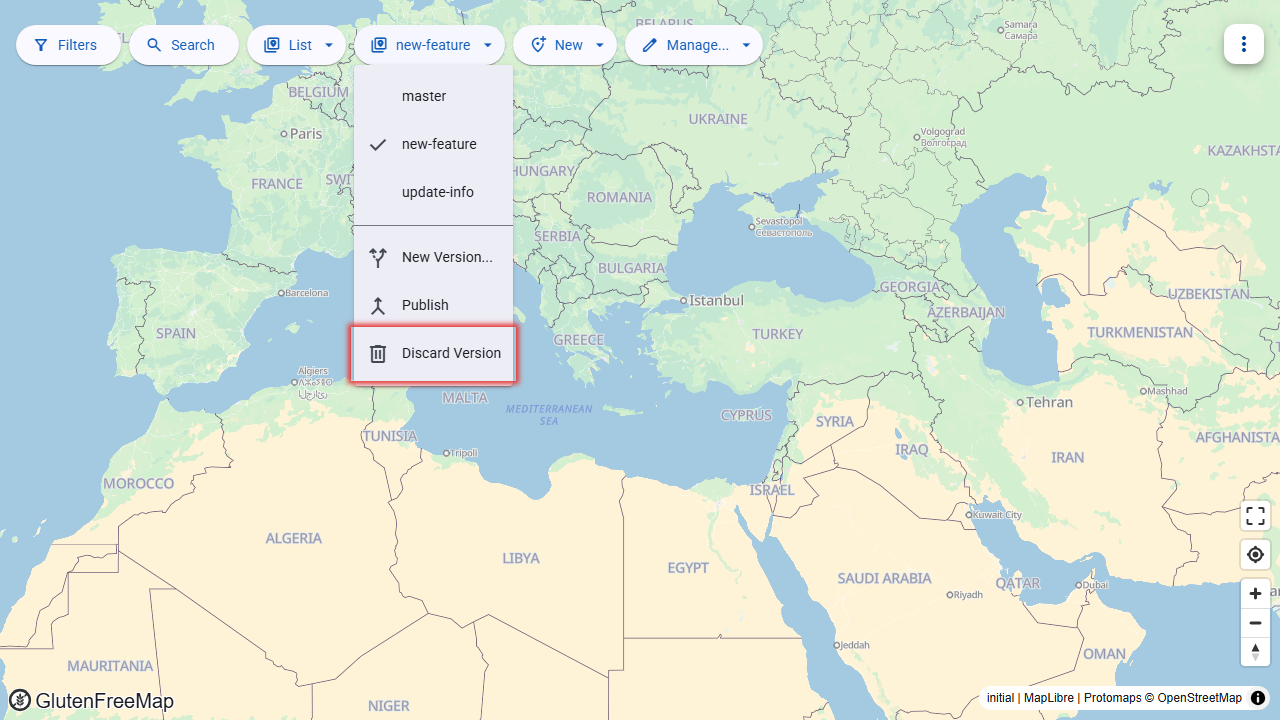
You will be asked to confirm this action because it permanently deletes all changes made in that version.
Adding Places
Set up your data first
Before adding places, make sure your list has at least one region, one category, and one certification type. The place creation features will not be available until these are defined.
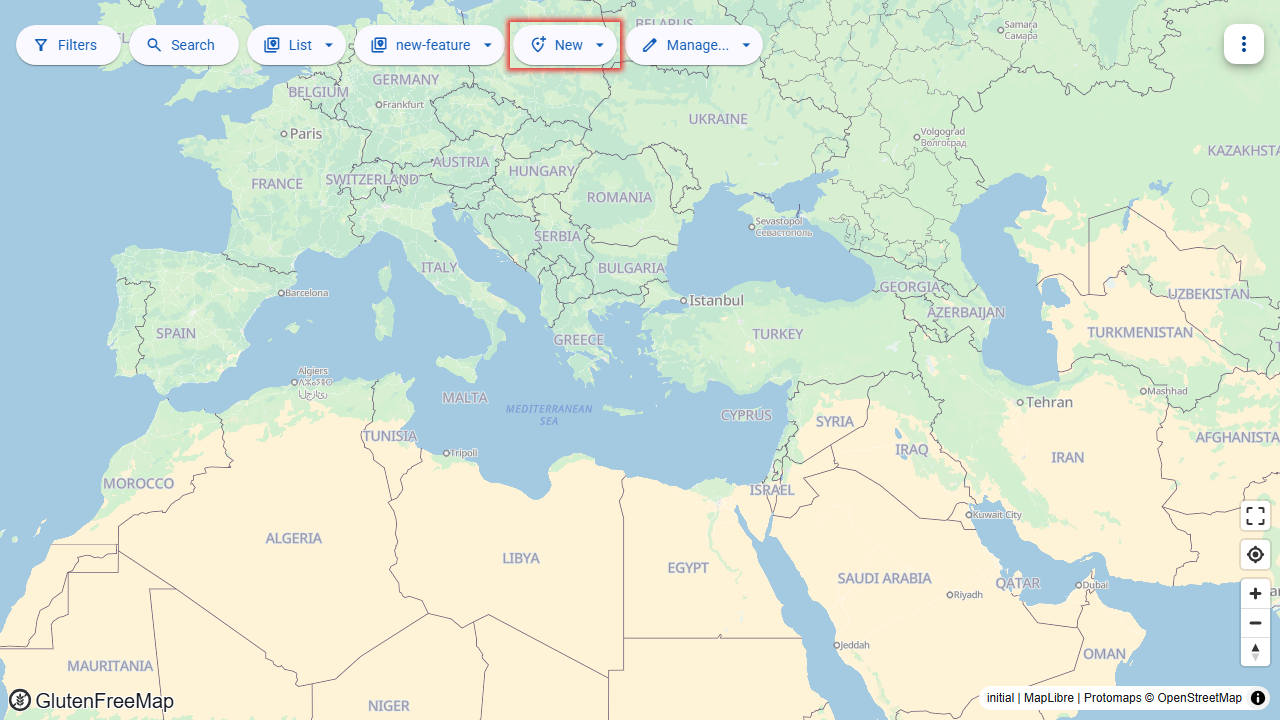
The "New" button lets you quickly add places to your list. It offers two options:
- Standalone Place - A single venue with one location.
- Group - A venue that has multiple locations (for example, a chain with several branches). You can add individual locations to the group later.
Standalone places
A standalone place represents a single venue with one address. When you create one, a form opens with two tabs: "General" and "Description".
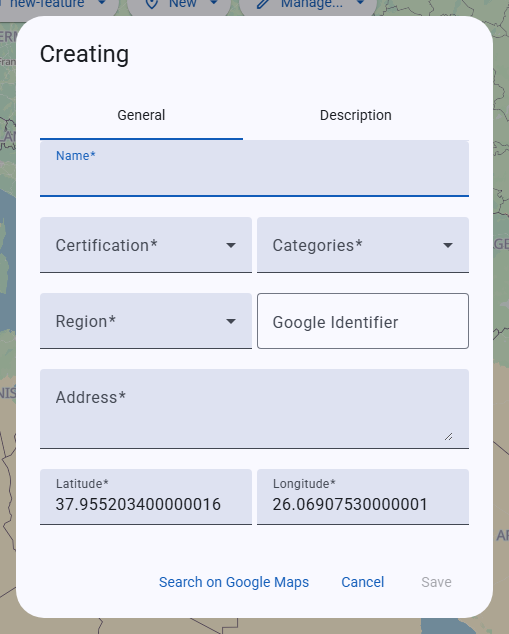
The "General" tab contains the following fields:
- Name (required) - The name of the venue.
- Certification (required) - The certification status of the venue (for example, "None" or "Certified").
- Categories (required) - One or more categories that describe the venue (for example, "Restaurant", "Bakery").
- Region (required) - The geographic region where the venue is located.
- Google Identifier (read-only) - Filled automatically when you use the Google Maps search.
- Address (required) - The full address of the venue. Can span multiple lines.
- Latitude (required) - The latitude coordinate, between -90 and 90.
- Longitude (required) - The longitude coordinate, between -180 and 180.
The "Description" tab lets you write a description of the venue. If your list supports multiple languages, you can provide a translation for each language.
Groups and child places
A group represents a venue that has multiple locations, such as a restaurant chain. When you create a group, the form only asks for:
- Name (required) - The name of the group.
- Certification (required) - The certification status, shared by all locations in the group.
- Categories (required) - The categories that describe all locations in the group.
A group does not have an address or coordinates because it is not a single location. Instead, you add child places to the group. Each child place represents one location of that group.
To add a child place to a group, go to the place list and click the "New place" button next to the group. A child place has the same location fields as a standalone place (region, address, coordinates) but does not have categories since it inherits them from the group. For certification, you can choose "Same as the group" to inherit the group's certification, or select a different one.
Searching on Google Maps
For standalone and child places, a "Search on Google Maps" button is available in the form. Clicking it opens a search dialog where you can type the name or address of the venue. As you type, suggestions appear from Google Maps.
When you select a suggestion, the following fields are filled automatically:
- Google Identifier
- Address
- Latitude and Longitude
- Region (if it matches one of your defined regions)
If the name field was empty, it will also be filled with the name from Google Maps.
This feature makes it much faster to add places because you don't need to look up coordinates manually.
Managing Your List
The "Manage..." button 16 gives you access to all aspects of your list. It opens a menu with the following options:
Places
Opens a list of all places in your list. You can filter them by name, type (standalone, group, or child), certification, and region. From here you can:
- Edit any place by clicking its edit button.
- Delete a place (with confirmation).
- Add a new child location to a group.
- Create new standalone places or groups.
Regions
Opens a list of all regions defined in your list. Regions help organize places geographically. You can create, edit, or delete regions. Regions that are currently used by a place cannot be deleted.
Languages
Opens a dialog where you can select which languages your list supports. You can enable or disable languages and change their order by dragging them. The order determines which language is shown first when multiple translations are available.
Categories
Opens a list of all categories defined in your list (for example, "Restaurant", "Bakery", "Café"). You can create, edit, or delete categories. Categories that are currently used by a place cannot be deleted.
Certifications
Opens a list of certification types (for example, "Certified by APC"). Certifications indicate that a venue has been verified by a trusted organization. You can create, edit, or delete certifications. Certifications that are in use cannot be deleted.
General Information
Opens a dialog where you can edit the list's metadata:
- Attribution - Credits or acknowledgements for your list.
- Description - A multilingual description of your list.
- Initial Position - The default map view (zoom, latitude, longitude) when your list is loaded. You can use the "Use Current View" button to set it to whatever the map is currently showing.